Cloudflare Tunnel — How to Expose Localhost Without Opening a Port
You are building something on your laptop. A development server is running on localhost:3000. You want a friend to test it. Or you are working with an AI age...

The Problem With Exposing Your Laptop to the Internet
You are building something on your laptop. A development server is running on localhost:3000. You want a friend to test it. Or you are working with an AI agent that needs to hit a webhook. Or you want to demo the work-in-progress to someone outside your network. The standard answer to "how do I let an outside computer reach my localhost server" is uncomfortable in three ways.
You can configure port forwarding on your home router. This works, but it punches a hole in your network that anyone on the internet can scan and probe. Your laptop is now directly exposed.
You can deploy the work-in-progress to a real server. This works, but it requires deploying every change you make, defeating the speed of local development.
You can use a tunnel service. ngrok was the popular choice for years. Cloudflare Tunnel is the option that has quietly become better than ngrok for almost every use case, and it is free. This article is what Cloudflare Tunnel is, why the architecture matters, and how to set one up in fifteen minutes.
The Inversion That Makes Tunneling Safe
Most network exposures involve inbound traffic — opening a port on your machine that the internet can connect to. Inbound exposure is the dangerous shape. Anyone who finds your IP can probe the open port, run vulnerability scanners, and exploit anything misconfigured.
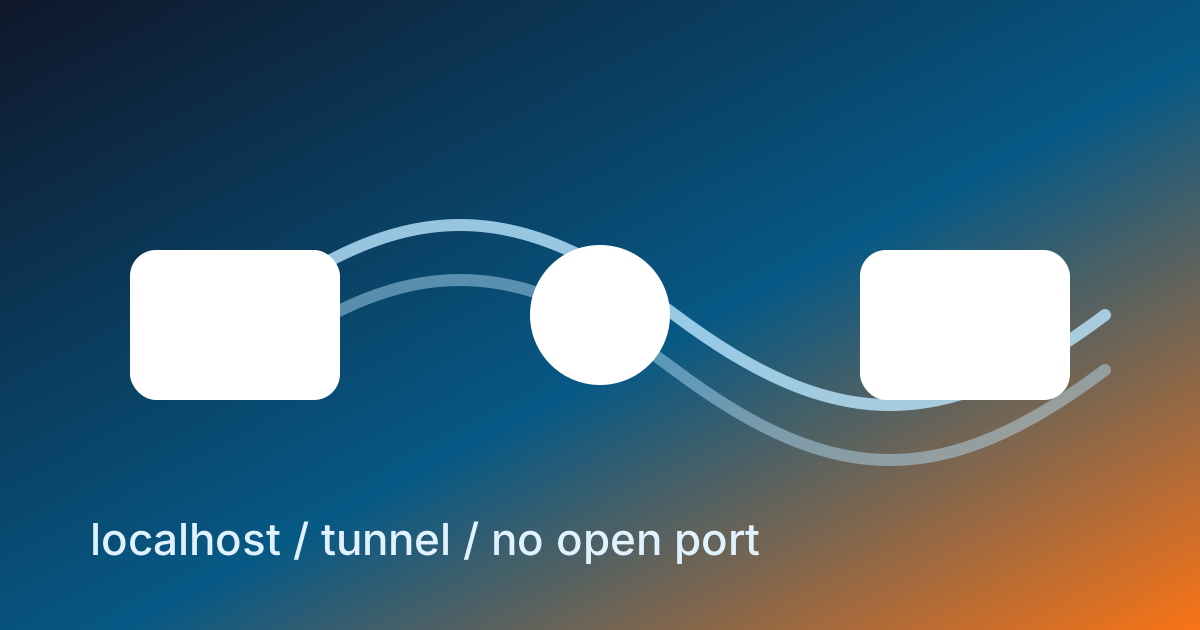
Cloudflare Tunnel inverts this. Instead of opening an inbound port, your machine makes an outbound connection to Cloudflare's network and keeps it open. When a request comes in to your-tunnel.example.com, it arrives at Cloudflare first. Cloudflare sends the request down the existing outbound connection your laptop opened. Your laptop processes it and sends the response back through the same connection.
The diagram is the most important picture to understand:
┌──────────────┐                  ┌──────────────────┐
│  Your laptop │ ───outbound───▶ │  Cloudflare edge  │ ◀── inbound ── User
│  cloudflared │ ◀──response─── │   (your domain)   │ ───response──▶ User
└──────────────┘                  └──────────────────┘
Your laptop never accepts an inbound connection. The only thing exposed to the internet is Cloudflare's edge, and Cloudflare runs a much hardened service designed to handle that. Your home network firewall remains closed.
This is the same architectural pattern as a reverse proxy but stretched across the internet. The security benefits are substantial.
What You Get Beyond Just Tunneling
Cloudflare Tunnel is one feature inside Cloudflare's free tier, and it composes with the rest of the platform:
- Free TLS — your tunnel URL is HTTPS automatically. Cloudflare handles the certificate.
- DDoS protection — Cloudflare's edge absorbs floods before they reach your laptop.
- Cloudflare Access — gate your tunnel behind email auth, OTP, or your company's SSO. Anyone hitting the URL must authenticate before requests are forwarded to your machine.
- WAF rules — block specific request patterns at the edge.
- Stable URL — once you set up a named tunnel, the public URL does not change between sessions. You can put it in webhook configurations, give it to teammates, embed it in OAuth callbacks.
The free tier is generous: unlimited tunnels, unlimited bandwidth, full feature set. The paid tier adds enterprise reporting and zero-trust management. For most personal and small-team use, the free tier is the entire product.
What You Need First
Three prerequisites:
- A Cloudflare account (free at
cloudflare.com). Sign up, verify email, done. - A domain on Cloudflare — meaning the domain's nameservers point to Cloudflare. This is also free if you transfer an existing domain or buy a new one through Cloudflare Registrar. Without a domain you can still use the simpler "Quick Tunnels" with random
*.trycloudflare.comURLs, but stable named tunnels need your own domain. - The
cloudflaredCLI installed on your laptop.
Install cloudflared:
# macOS via Homebrew
brew install cloudflared

# Linux via the official package
curl -L https://github.com/cloudflare/cloudflared/releases/latest/download/cloudflared-linux-amd64.deb -o cloudflared.deb
sudo dpkg -i cloudflared.deb

# Windows: download the .msi from the cloudflared GitHub releases page
Verify:
cloudflared --version
You should see a version string. If command not found, the install failed.
A Quick Tunnel for Five Minutes of Demo
The fastest path to "my localhost is on the public internet" is a Quick Tunnel. No account login required:
# In one terminal, run your local server
node server.js  # serves at http://localhost:3000

# In another terminal, start a Quick Tunnel
cloudflared tunnel --url http://localhost:3000
cloudflared prints a URL like https://random-words-here.trycloudflare.com. That URL is now live on the internet, with HTTPS, and forwards every request to your local server. Send the URL to anyone — they can hit your localhost from across the world.
Press Ctrl+C to stop. The URL goes away. The next session gets a different URL. This is the throwaway version, perfect for one-off demos.
A Named Tunnel for Real Use
For something stable — a development URL you want to keep, a webhook target, an integration that needs a fixed address — you want a named tunnel mapped to your own domain.
The setup is one-time and looks like this:
# Authenticate cloudflared with your Cloudflare account
cloudflared tunnel login
# Opens a browser. Authorize the domain you want to use.

# Create a named tunnel
cloudflared tunnel create my-laptop
# Outputs: Tunnel credentials written to ~/.cloudflared/<UUID>.json

# Route a hostname through the tunnel
cloudflared tunnel route dns my-laptop dev.your-domain.com
# Adds a CNAME in Cloudflare DNS pointing dev.your-domain.com → tunnel UUID

# Run the tunnel pointing at your local server
cloudflared tunnel --hostname dev.your-domain.com --url http://localhost:3000 run my-laptop
Now https://dev.your-domain.com forwards to localhost:3000. The URL is stable. Stop and restart cloudflared and the URL still works. Webhooks pointed at it survive restarts.
For repeated use, write a small config.yml so you do not have to retype flags:
# ~/.cloudflared/config.yml
tunnel: my-laptop
credentials-file: ~/.cloudflared/<UUID>.json

ingress:
  - hostname: dev.your-domain.com
    service: http://localhost:3000
  - hostname: api-dev.your-domain.com
    service: http://localhost:5000
  - service: http_status:404
Then start the tunnel with just:
cloudflared tunnel run my-laptop
The ingress section can route multiple hostnames to multiple local services. One tunnel, many subdomains, one process.
Running cloudflared as a Service
For a tunnel that should always be up, install cloudflared as a system service:
# macOS
sudo cloudflared service install

# Linux (systemd)
sudo cloudflared service install
sudo systemctl enable cloudflared
sudo systemctl start cloudflared
The service starts at boot, restarts if it crashes, and survives reboots. Combine this with a process manager for your local server (pm2, forever, or just running it inside tmux) and you have a reliable always-on dev environment that never opens a port to the public internet.
Where Cloudflare Tunnel Fits Versus the Alternatives
A quick comparison of the realistic options:
| Tool | Setup | Custom domain | HTTPS | Free tier limits | Architecture |
|---|---|---|---|---|---|
| Port forwarding (router) | Router config | Yes | Manual | Unlimited | Inbound port (risky) |
| ngrok | One command | Paid plan | Yes | 1 tunnel, random URL | Outbound tunnel |
| Cloudflare Tunnel | One command + DNS | Yes (free) | Yes (free) | Unlimited tunnels | Outbound tunnel |
| Tailscale Funnel | Tailscale account | tailscale.net subdomain | Yes | 3 services | Outbound tunnel |
| Localtunnel | One command | No | Yes | Random URL only | Outbound tunnel |
| VPS reverse proxy | Real server setup | Yes | Manual | Server cost | Outbound tunnel |
Cloudflare Tunnel wins on most rows. The setup is one command, the custom domain is included, the limits are generous, and the underlying network is the second-largest CDN in the world. The case to use ngrok in 2026 is mostly "I already have an ngrok subscription and the workflow is muscle memory."
What Tunneling Does Not Solve
Tunneling is not a substitute for production deployment. A few honest limits:
- Performance. Every request does a round trip through Cloudflare's network. For local development this is fine; for actual users this adds latency you would not have on a normal deployment.
- Reliability. Your laptop has to stay on. If the lid closes, the tunnel goes down. Real production runs on cloud infrastructure that handles uptime.
- Resource limits. Your laptop has the resources of a laptop. Real production scales horizontally.
- The tunnel is still a publicly reachable URL. If your local server has a security bug, the tunnel exposes that bug to the internet just as much as a real deployment would. Use Cloudflare Access to gate the URL behind authentication when the work-in-progress should not be public.
For development, integration testing, webhook callbacks, and demos, the tunnel is the right tool. For serving real users, deploy properly.
Where This Fits
Lesson 07 of the ABCsteps curriculum sets up a Cloudflare Tunnel for the project so you can share work in progress with anyone. The lesson walks through the same setup this article covered. With this article in your head, every step in the lesson is recognizable — cloudflared login, named tunnel, DNS route, run command. The lesson hands you the keystrokes; this article gave you the architecture.
Apply this hands-on · Module B
Cloudflare Tunnel: Share a Local App Safely
Lesson 07 sets up a Cloudflare Tunnel for the project. This article explains the outbound-only model that makes the tunnel safer than port-forwarding before you run the lesson.



Skill vocabulary from the lesson
Tool logos are curriculum references only: no affiliation, hiring promise, salary promise, or placement guarantee.
Company skill surface
Demo infrastructure matters when teams need to review work quickly without turning a prototype into production.





Team contexts
Developer relations, Internal tools, Prototype review
Proof prompt
Show the local server, the tunnel URL, and a clear note about what is demo infrastructure versus production hosting.
Company and platform logos are ecosystem references only: no affiliation, endorsement, interview access, hiring preference, salary outcome, or placement guarantee.
Open lesson
Divyanshu Singh Chouhan
Founder, ABCsteps Technologies
Founder of ABCsteps Technologies. Building a 20-lesson AI engineering course that teaches AI, ML, cloud, and full-stack development through written lessons and real projects.


After this article
Choose the next proof-bearing step.
Do not collect another article by default. Move into a public lesson, continue a focused path, or bring a concrete repo question to a paid-plan conversation.
Use paid guidance only when it changes the artifact: a repo, demo, written note, architecture decision, or review trail another person can inspect.
 Build
BuildContinue public lessons
Open the 20-lesson path and turn the concept into a runnable artifact.
ReadFollow a focused path
Use a short article sequence only when one lesson needs more context.
DecideCompare plans
Use a paid plan only if feedback, accountability, or review would change the work.
 Ask
AskAsk with context
Send the lesson, repo, error, or decision you want reviewed before scheduling a call or review.
Related Articles
On this page
Article context
Deployment and runtime surface
Read this article as operational vocabulary: repeatability, reachability, logs, runtime boundaries, and release evidence.

Tool and platform logos are article-context references only: no affiliation, endorsement, interview access, hiring promise, salary promise, or placement guarantee.
Share