HTML and CSS — The Visible Language of the Web
Every web page you have ever loaded is, at its starting point, two text files. One says what is on the page — the headings, paragraphs, images, lists, forms....

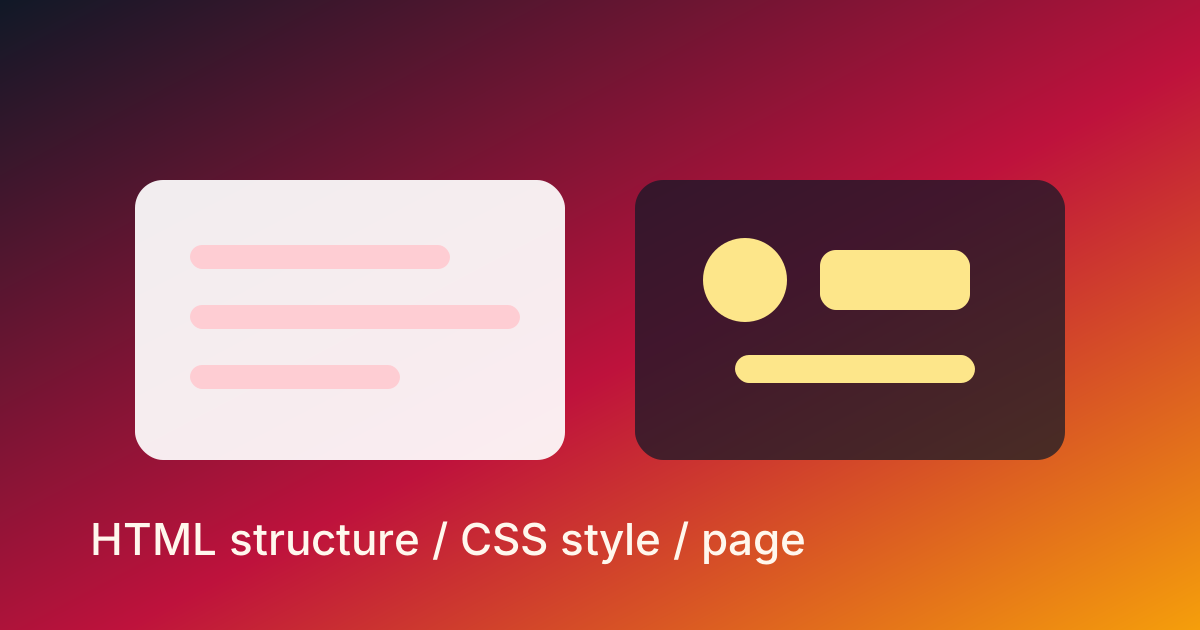
The Two Languages a Browser Reads First
Every web page you have ever loaded is, at its starting point, two text files. One says what is on the page — the headings, paragraphs, images, lists, forms. The other says how it should look — the colors, spacing, fonts, layout, animations. The browser reads both and paints the result.
The first is HTML. The second is CSS. They are the two languages every web developer learns before anything else, and they are both intentionally simple — neither is a programming language in the usual sense. HTML cannot do arithmetic. CSS cannot make decisions. They describe; they do not compute.
That simplicity is a feature. A browser must be able to render a web page with no JavaScript at all, and the same page must look acceptable on a phone, a 4K monitor, an e-reader, a screen reader for a blind user, and Google's indexing crawler. HTML and CSS are the lowest-common-denominator agreement that makes that possible.
HTML: The Skeleton of Meaning
HTML stands for HyperText Markup Language. The name is older than most engineers reading this — it was coined by Tim Berners-Lee at CERN in 1991. The "markup" part is the heart of it. HTML does not describe how something looks; it describes what something is.
A heading is a heading. A paragraph is a paragraph. A list of items is a list. The browser then makes its own decisions about how to render those things by default.
The smallest valid HTML document looks like this:
<!DOCTYPE html>
<html lang="en">
  <head>
    <meta charset="utf-8">
    <title>My First Page</title>
  </head>
  <body>
    <h1>Hello, world</h1>
    <p>This is a paragraph of text.</p>
  </body>
</html>
Read it like a tree:
<html>is the root.<head>carries metadata the user does not see — the title that appears in the browser tab, the character encoding, links to stylesheets.<body>carries the content the user sees.<h1>is a top-level heading.<p>is a paragraph. These are elements.
Every element has an opening tag (<p>) and a closing tag (</p>). Some elements that cannot have content (like images and line breaks) are self-closing: <img src="cat.jpg">. The text between the tags is the content of that element.
The Elements You Will Use Daily
There are about 110 HTML elements. You will use maybe 25 of them constantly. The high-frequency ones:
| Element | Means |
|---|---|
<h1>–<h6> | Six levels of heading |
<p> | Paragraph |
<a href="..."> | Link |
<img src="..." alt="..."> | Image |
<ul>, <ol>, <li> | Unordered/ordered lists and their items |
<div> | Generic block container |
<span> | Generic inline container |
<button> | A button |
<form>, <input>, <label> | Forms |
<table>, <tr>, <td> | Tables |
<header>, <nav>, <main>, <footer>, <article>, <section> | Semantic landmarks |
The last row matters more than it looks. <header>, <nav>, and <main> are not stylistic — they are semantic. A screen reader announces them. Google's crawler weights them. Pasting a <div> everywhere works visually but throws away the meaning that assistive technology and search engines depend on. Use the semantic elements. The cost is zero; the benefit is real.
Attributes — How Elements Carry Data
Every element can carry attributes — name-value pairs that modify the element. The most common:
<a href="https://abcsteps.com" target="_blank" rel="noopener">visit</a>
<img src="/logo.png" alt="ABCsteps logo" width="120" height="40">
<input type="email" name="email" placeholder="[email protected]" required>
<button class="primary" disabled>Submit</button>
Two attributes that show up everywhere and earn their keep:
class— a label you can target with CSS or JavaScript. Multiple elements can share a class. A single element can have many classes (class="primary large").id— a unique label for one specific element on the page. Targetable as#myIdin CSS,getElementById('myId')in JS, and as URL fragments (/about#contact).
class is for "all the things that look or behave alike." id is for "this one specific thing." Use class almost always; id is the exception, not the rule.
CSS: The Layer of Look
CSS — Cascading Style Sheets — does for appearance what HTML does for structure. It is a separate language with its own syntax, and the browser applies it on top of the HTML the way you might paint over a sketch.
The smallest example:
h1 {
  color: navy;
  font-size: 32px;
}

p {
  color: gray;
  line-height: 1.6;
}
Three things are happening:
h1andpare selectors — patterns that pick which elements to style.- The braces
{ }enclose a list of declarations for that selector. - Each declaration is
property: value;—color: navymeans "set the color property to navy."
You can write CSS in three places:
- External stylesheet — a separate
.cssfile linked from<head>. The right answer for almost all cases. Cacheable, shareable across pages, easy to maintain. <style>block in the HTML head. Fine for one-page demos.- Inline
style="..."attribute on an element. Fine in rare overrides, otherwise a smell — your styles live in one file for a reason.
Selectors — Picking the Right Elements
CSS gets powerful through its selectors. The high-frequency ones:
/* element selector — every <p> */
p { ... }

/* class selector — every element with class="primary" */
.primary { ... }

/* id selector — the one element with id="hero" */
#hero { ... }

/* descendant — every <a> inside an <article> */
article a { ... }

/* direct child — only <li> directly inside <nav> */
nav > li { ... }

/* attribute — every <input type="email"> */
input[type="email"] { ... }

/* state — every <button> the user is hovering */
button:hover { ... }

/* combination — every <a> with class "external" inside <main> */
main a.external { ... }
These compose. A real codebase mixes them constantly. The skill is knowing which selector is appropriate — the smallest hammer that hits the nail.
The "Cascading" in Cascading Style Sheets
CSS is unusual among languages because conflicts are not errors. If two rules both apply to the same element and they say different things, CSS has rules for picking which one wins. The full algorithm is intricate, but the practical version is:
- Specificity wins. A more specific selector beats a less specific one.
#hero h1beatsh1..primary.largebeats.primary. - Order breaks ties. Within the same specificity, the rule written later wins.
!importantoverrides almost everything. Use it rarely — it makes future overrides painful.
Inheritance is the other half of cascading. Some properties (color, font, line-height) inherit from a parent down to its children, so you can set them once on <body> and the whole document picks them up. Other properties (margin, padding, background) do not inherit — you set them on each element directly.
When a CSS rule does not seem to apply, the answer is usually one of: a more specific selector is winning, the property does not inherit the way you expected, or there is a typo in the value. The browser DevTools "Computed" tab tells you exactly which rules applied to a given element and which were overridden. Live in that tab when debugging styles.
The Box Model
Every visible element in HTML is a rectangle. CSS gives you four concentric layers around the content of each rectangle:
┌─────────────────── margin ────────────────────┐
│                                                │
│   ┌───────────── border ──────────────────┐    │
│   │                                       │    │
│   │   ┌───────── padding ─────────────┐   │    │
│   │   │                               │   │    │
│   │   │         content               │   │    │
│   │   │                               │   │    │
│   │   └───────────────────────────────┘   │    │
│   │                                       │    │
│   └───────────────────────────────────────┘    │
│                                                │
└────────────────────────────────────────────────┘
- Content — the text, image, or child elements inside.
- Padding — space inside the border, between the content and the border. Background color extends through padding.
- Border — the visible edge of the element (often invisible by default).
- Margin — space outside the border, between this element and its neighbors.
Set box-sizing: border-box once on every element (a one-liner most modern stylesheets include) and the math becomes intuitive: the width you set is the visible width, including padding and border. Without that, padding and border add to the width, which trips up new developers constantly.
Flexbox and Grid — How Modern Layout Actually Works
For two decades, CSS layout was a fight against the language. People used floats, tables, absolute positioning, and clever hacks. Around 2016, two layout systems landed in every browser and changed everything:
- Flexbox — for one-dimensional layout (a row of items, or a column). Use Flexbox when your items flow in one direction and you want them to space out, align, or wrap.
- CSS Grid — for two-dimensional layout (rows and columns). Use Grid when you have a true grid: a page layout with header, sidebar, main, footer, or a card grid that wraps to multiple rows.
A complete modern centering of an element in CSS:
.parent {
  display: flex;
  justify-content: center;  /* horizontal */
  align-items: center;      /* vertical */
  min-height: 100vh;
}
Three lines. Used to take a Stack Overflow thread to figure out. Both Flexbox and Grid are worth learning properly — they make almost every layout problem trivial.
Responsive Design — One HTML, Many Screens
Same HTML serves a phone, a tablet, and a desktop. CSS does the adapting. The mechanism is media queries:
.sidebar {
  display: none;  /* hidden on small screens */
}

@media (min-width: 768px) {
  .sidebar {
    display: block;
    width: 240px;
  }
}
Above 768px viewport width, the sidebar becomes visible. Below, it stays hidden. Modern responsive design uses media queries plus Flexbox/Grid plus relative units (rem, em, %, vw, vh) plus clamp() for fluid scaling. All four working together is what makes a site feel good on every device.
What This Layer Does Not Do
HTML and CSS are deliberately limited:
- They cannot fetch new data from a server.
- They cannot store anything between page loads.
- They cannot make decisions based on logic.
- They cannot animate beyond simple transitions.
Anything that requires those is JavaScript's job. The clean separation is on purpose — a browser must be able to render the page with HTML and CSS alone, and only after that does it run scripts. This is why a slow JavaScript file does not block users from reading content; the content is already there before the script even loads.
Where This Fits
Lesson 02 of the ABCsteps curriculum has you modify a real Instagram-like interface in VS Code. The HTML you read in that lesson is the structure described in this article. The CSS is the styling described here. With this mental model, you will read the lesson's HTML and immediately know what it does — <header> is a landmark, class="primary" is a styling hook, display: flex is a row of items. The lesson hands you the keyboard. This article hands you the language.
Apply this hands-on · Module A
Set Up VS Code Like a Developer
Lesson 02 modifies an Instagram-like interface. This article explains the structure HTML provides and the styling layer CSS adds — the two ingredients that make a web page visible.



Skill vocabulary from the lesson
Tool logos are curriculum references only: no affiliation, hiring promise, salary promise, or placement guarantee.
Company skill surface
Engineering teams expect beginners to navigate a real repo before they write clever code.






Team contexts
Product engineering, Developer tools, Code review teams
Proof prompt
Show a before-and-after diff, explain which file changed, and describe why the change was safe.
Company and platform logos are ecosystem references only: no affiliation, endorsement, interview access, hiring preference, salary outcome, or placement guarantee.
Open lesson
Divyanshu Singh Chouhan
Founder, ABCsteps Technologies
Founder of ABCsteps Technologies. Building a 20-lesson AI engineering course that teaches AI, ML, cloud, and full-stack development through written lessons and real projects.


After this article
Choose the next proof-bearing step.
Do not collect another article by default. Move into a public lesson, continue a focused path, or bring a concrete repo question to a paid-plan conversation.
Use paid guidance only when it changes the artifact: a repo, demo, written note, architecture decision, or review trail another person can inspect.
BuildContinue public lessons
Open the 20-lesson path and turn the concept into a runnable artifact.
ReadFollow a focused path
Use a short article sequence only when one lesson needs more context.
DecideCompare plans
Use a paid plan only if feedback, accountability, or review would change the work.
 Ask
AskAsk with context
Send the lesson, repo, error, or decision you want reviewed before scheduling a call or review.
Related Articles
On this page
Article context
Product interface surface
Read this article as web vocabulary: browser behavior, interface structure, client-server boundaries, and user-facing state.



Tool and platform logos are article-context references only: no affiliation, endorsement, interview access, hiring promise, salary promise, or placement guarantee.
Share