Linux Terminal Commands Every Developer Should Know
Navigation, file ops, permissions, pipes, process management, networking, sed and awk — the working set of CLI commands that turn a terminal into a power tool.

The Command Line Interface: A Technical Foundation for Modern Engineering
In the landscape of modern software engineering, the Graphical User Interface (GUI) functions as a helpful abstraction. For general users, a GUI provides an intuitive point-and-click experience. However, for developers, these abstractions can limit efficiency and obscure the underlying mechanics of the system. To move from a consumer of tools to an architect of systems, mastery of the Command Line Interface (CLI) is required.
The Linux terminal is rooted in the Unix Philosophy, a set of engineering principles articulated by Doug McIlroy. This philosophy encourages developers to create programs that do one thing well and work harmoniously with other programs. In this environment, commands are modular building blocks. By chaining these specialized tools, developers can solve complex problems with a degree of precision that graphical tools cannot replicate.
While modern Integrated Development Environments (IDEs) like VS Code offer built-in terminal emulators and GUI wrappers for Git or Docker, the terminal provides a direct, unmediated interface with the operating system. Terminal skills are portable. While a specific IDE's interface may change or be unavailable on a remote server, the Linux terminal is ubiquitous across cloud environments, embedded systems, and macOS/Linux workstations. This knowledge enables automation through shell scripting, which serves as the backbone of modern Continuous Integration and Continuous Deployment (CI/CD) pipelines.
I. Navigation and Filesystem Management
Navigating the Linux filesystem is the most fundamental skill for any developer. Unlike Windows, which uses drive letters (C:, D:), Linux employs a single unified tree structure.
Essential Navigation Commands
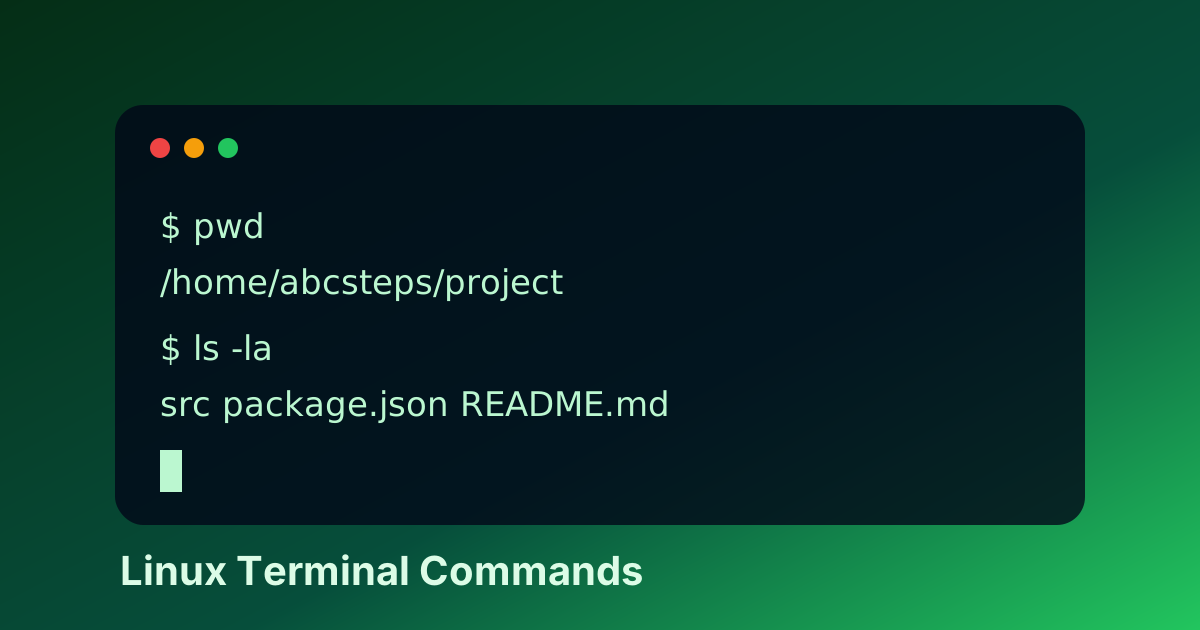
The "holy trinity" of navigation consists of pwd, ls, and cd.
pwd(Print Working Directory): Displays the full path of the current directory. This is essential when working in complex project structures to ensure commands are executed in the correct context.ls(List): Lists directory contents. In practice, developers rarely uselsalone.ls -l: Provides a long format listing, showing permissions, owners, and file sizes.ls -a: Shows hidden files (those starting with a dot, such as.envor.gitignore).ls -lh: Combines long format with human-readable file sizes (e.g., 1.2K, 45M).
cd(Change Directory): Used to move between directories.cd ~: Moves to the user's home directory.cd ..: Moves up one level in the directory hierarchy.cd -: Returns to the previous directory, useful for toggling between two locations.
File and Directory Manipulation
Creating and organizing files efficiently requires an understanding of mkdir, touch, cp, and mv.
mkdir -p: The-p(parents) flag allows for the creation of nested directory structures in a single command. For example,mkdir -p src/components/authcreates all three levels if they do not exist.touch: Primarily used to create empty files or update the timestamp of existing ones. It is a standard tool for initializing configuration files.cp(Copy): To copy directories, the-r(recursive) flag is required. The-a(archive) flag is often preferred as it preserves permissions and symbolic links.mv(Move/Rename): In Linux, moving a file and renaming a file are the same operation.mv old_name.js new_name.jsrenames the file, whilemv file.js ./src/moves it.
The Risks of Deletion
The rm (remove) command is powerful and irreversible on most standard Linux filesystems.
rm -r: Recursively deletes a directory and its contents.rm -f: Forces deletion by ignoring nonexistent files and never prompting for confirmation.- Best Practice: Use the
-i(interactive) flag when deleting sensitive files to prompt for confirmation, or uselswith the same pattern first to verify exactly what will be deleted.
II. Text Processing and Data Inspection
In software development, almost everything—source code, logs, configurations, and API responses—is represented as text. The ability to inspect and manipulate this data directly in the terminal is a significant productivity multiplier.
Viewing File Contents
cat(Concatenate): Useful for displaying the contents of small files. For large files, it floods the terminal buffer and is generally inefficient.less: A "pager" utility that allows for navigating through large files without loading the entire file into memory. It supports searching (using/followed by a keyword) and scrolling.headandtail: These commands allow you to view the beginning or end of a file.tail -n 20: Shows the last 20 lines of a file.tail -f: "Follows" a file in real-time. This is the standard method for monitoring application logs during debugging.
Terminal-Based Text Editors
Every developer will eventually need to edit a file on a remote server where a GUI is unavailable. Proficiency in at least one terminal editor is mandatory.
- Nano: A simple, modeless editor. It is intuitive for beginners because the command shortcuts are displayed at the bottom of the screen.
- Vim (Vi Improved): A powerful, modal editor. While it has a steep learning curve, it allows for high-speed text manipulation without the use of a mouse. Mastering basic Vim commands (
ifor insert mode,:wto save,:qto quit) is a standard industry expectation.
III. Permissions and System Security
Linux is a multi-user operating system with a robust security model. Every file and directory has an owner, a group, and a set of permissions.
Understanding chmod and chown
Permissions are divided into Read (r), Write (w), and Execute (x) for three categories of users: the Owner, the Group, and Others.
chmod(Change Mode): Modifies file permissions.- Symbolic Method:
chmod u+x script.shadds execute permission for the user. - Numeric (Octal) Method:
chmod 755 filesets permissions where 7 (rwx) is for the owner, and 5 (r-x) is for the group and others.
- Symbolic Method:
chown(Change Owner): Changes the user and/or group ownership of a file. This is frequently used when deploying web applications to ensure the web server user (e.g.,www-dataornginx) has the necessary access to the source code.
The Role of Sudo
The sudo (Superuser Do) command allows a permitted user to execute a command as the root user or another user.
- Principle of Least Privilege: Developers should avoid logging in as the root user. Instead, use
sudofor specific administrative tasks (like installing packages or editing system configs) and return to a standard user for development work. This prevents accidental system-wide damage from typos or malicious scripts.
| Permission | Octal | Description |
|---|---|---|
--- | 0 | No permissions |
--x | 1 | Execute only |
-w- | 2 | Write only |
-wx | 3 | Write and execute |
r-- | 4 | Read only |
r-x | 5 | Read and execute |
rw- | 6 | Read and write |
rwx | 7 | Full permissions (Read, write, and execute) |
IV. Pipes, Redirection, and Logic Chaining
The true power of the terminal is found in I/O Redirection and Pipes. These allow the output of one command to serve as the input for another, enabling the creation of custom data pipelines.
Redirection Operators
>: Redirects standard output (stdout) to a file, overwriting its contents.>>: Appends stdout to the end of a file. Useful for logging.2>: Redirects standard error (stderr). For example,command 2> error.logsaves only the errors.<: Redirects a file's contents into a command as standard input (stdin).
The Power of the Pipe (|)
The pipe operator takes the stdout of the command on the left and passes it as stdin to the command on the right.
- Example:
ps aux | grep "node"This command lists all running processes (ps aux) and filters the results (grep) to show only those related to Node.js.
Searching with Grep and Find
grep(Global Regular Expression Print): Searches for patterns within text. Usegrep -r "TODO" .to recursively search for the string "TODO" in the current directory.find: Locates files based on attributes such as name, size, or modification date.find . -name "*.log" -mtime -7: Finds all.logfiles in the current directory modified in the last 7 days.
xargs: Converts stdin into command-line arguments. It is often paired withfindto perform actions on the found files, such asfind . -name "*.tmp" | xargs rm.
V. Process Management and System Monitoring
A developer's responsibility extends to the runtime behavior of their code. Monitoring system resources and managing processes are essential for performance tuning and troubleshooting.
Monitoring Tools
top: The classic system monitor. It provides a dynamic view of CPU and memory usage.htop: An improved version oftopwith a color-coded interface and better visualization of multi-core usage. It allows users to scroll through processes and kill them without typing PIDs (Process IDs).df -h: Displays disk space usage in a human-readable format.free -m: Shows the amount of free and used memory in megabytes.
Controlling Processes
When a process becomes unresponsive or needs to be stopped, the terminal provides precise control.
ps aux: Displays a detailed snapshot of every running process on the system.kill: Sends a signal to a process.kill -15 (SIGTERM): Requests a graceful shutdown. This is the preferred method as it allows the program to clean up resources.kill -9 (SIGKILL): Forces the process to terminate immediately. Use this only if SIGTERM fails.
Background and Foreground Tasks
&: Adding an ampersand to the end of a command (e.g.,node server.js &) runs it in the background.Ctrl + Z: Pauses a running foreground process.bg: Resumes a paused process in the background.fg: Brings a background process back to the foreground.
VI. Networking and Remote Access
Modern development is inherently distributed. Commands that facilitate network communication and remote management are vital for backend and DevOps workflows.
Secure Shell (SSH)
ssh is the industry standard for secure communication with remote servers.
- Key-Based Authentication: Rather than using passwords, developers should use
ssh-keygento create a public/private key pair. Adding the public key to a server's~/.ssh/authorized_keysfile allows for secure, password-less logins. scp(Secure Copy): Used to transfer files between a local host and a remote host over the SSH protocol.
Interacting with Web Services
curl: A versatile tool for making network requests. It is used to test API endpoints, download files, and inspect HTTP headers.curl -I https://example.com: Fetches only the HTTP headers.curl -X POST -d '{"key":"value"}' https://api.example.com/data: Sends a POST request with a JSON body.
wget: Primarily used for downloading files from the internet. It supports recursive downloads and can resume interrupted transfers.
Network Troubleshooting
ping: Checks connectivity to a host.netstatorss: Displays active network connections and listening ports. For developers,ss -tulnis a common command to verify which ports an application is listening on.
VII. Advanced Text Manipulation: Sed and Awk
For complex data transformations, sed and awk are the standard tools. They allow for sophisticated editing that would be time-consuming in a GUI.
Sed (Stream Editor)
sed is primarily used for find-and-replace operations within a stream of text.
- Example:
sed -i 's/localhost/production-db/g' config.yamlThe-iflag performs an "in-place" edit, replacing all instances of "localhost" with "production-db" in the specified file.
Awk
awk is a complete programming language designed for processing column-based data. It is excellent for extracting specific fields from logs or CSV files.
- Example:
awk '{print $1, $9}' access.logThis command prints the first and ninth columns (typically the IP address and status code) from a web server access log. - Use Case: Developers can use
awkto sum values, count occurrences, or filter rows based on numerical conditions without writing a separate Python or JavaScript script.
VIII. Environment Customization and Productivity
The terminal is a highly personalizable workspace. Small optimizations in the environment can lead to significant long-term productivity gains.
Shells and Configuration
The Terminal is the window (the application), while the Shell is the command interpreter running inside it.
- Bash: The standard shell on most Linux distributions.
- Zsh: A popular alternative that offers advanced tab completion and plugin support (often used with the "Oh My Zsh" framework).
Configuration for these shells is stored in "dotfiles" like .bashrc or .zshrc in the user's home directory.
Aliases and Environment Variables
- Aliases: Short nicknames for long commands.
alias gs='git status'alias dcup='docker-compose up -d'Defining these in your shell configuration file saves thousands of keystrokes over time.
- Environment Variables: Variables that define the environment in which processes run.
- The
PATHvariable tells the shell which directories to search for executable commands. - The
EDITORvariable sets the default text editor for the system.
- The
Command History
The history command displays a list of previously executed commands.
- Reverse Search (
Ctrl + R): Allows you to search back through your history by typing a fragment of a previous command. This is an essential tool for recalling complex commands used weeks or months prior.
What to do next
Reading this article will not make you fluent. Practice will. Three concrete commitments that I'd give any learner in the curriculum:
- For one week, force yourself to use the terminal first for any operation a GUI would handle. Copying a file, finding a file, looking at a log. The first day will be slow; by Friday you'll feel the difference.
- Build one small alias / shell function that automates a thing you do daily. Add it to your
.bashrcor.zshrc. Once you have one, you'll naturally make more. - Write a 20-line bash script that does something useful for you — clean up a directory, deploy a project, fetch and process some JSON. Save it in
~/bin/and put it on yourPATH.
These three actions move you from "person who knows terminal commands" to "person who reaches for the terminal first." That shift is the actual goal.
If you want a guided walkthrough of how the terminal fits with editors, Git, and the rest of the developer stack, that's exactly what the ABCsteps Lesson 04 covers.
Apply this hands-on · Module A
How Developers Actually Work: The Terminal
Lesson 04 walks you through the terminal as a working surface — files, processes, scripts. This article is the reference list; the lesson is the muscle-memory practice.



Skill vocabulary from the lesson
Tool logos are curriculum references only: no affiliation, hiring promise, salary promise, or placement guarantee.
Company skill surface
Every serious software team expects command-line confidence because builds, logs, and deployments speak through text.






Team contexts
Platform engineering, Backend teams, Support engineering
Proof prompt
Show the command you ran, the output you read, and the fix you made after interpreting the terminal result.
Company and platform logos are ecosystem references only: no affiliation, endorsement, interview access, hiring preference, salary outcome, or placement guarantee.
Open lesson
Divyanshu Singh Chouhan
Founder, ABCsteps Technologies
Founder of ABCsteps Technologies. Building a 20-lesson AI engineering course that teaches AI, ML, cloud, and full-stack development through written lessons and real projects.


After this article
Choose the next proof-bearing step.
Do not collect another article by default. Move into a public lesson, continue a focused path, or bring a concrete repo question to a paid-plan conversation.
Use paid guidance only when it changes the artifact: a repo, demo, written note, architecture decision, or review trail another person can inspect.
 Build
BuildContinue public lessons
Open the 20-lesson path and turn the concept into a runnable artifact.
ReadFollow a focused path
Use a short article sequence only when one lesson needs more context.
DecideCompare plans
Use a paid plan only if feedback, accountability, or review would change the work.
 Ask
AskAsk with context
Send the lesson, repo, error, or decision you want reviewed before scheduling a call or review.
Related Articles
On this page
Article context
Engineering workspace surface
Read this article as workspace vocabulary: editor habits, source control, review loops, and project navigation.
Tool and platform logos are article-context references only: no affiliation, endorsement, interview access, hiring promise, salary promise, or placement guarantee.
Share