Three.js for Beginners — Scenes, Cameras, and Lights Without the Math Panic
Twenty years ago, if you wanted 3D in a browser you needed a plugin. Java applets, Flash, Unity Web Player, Shockwave — each one came with installation frict...

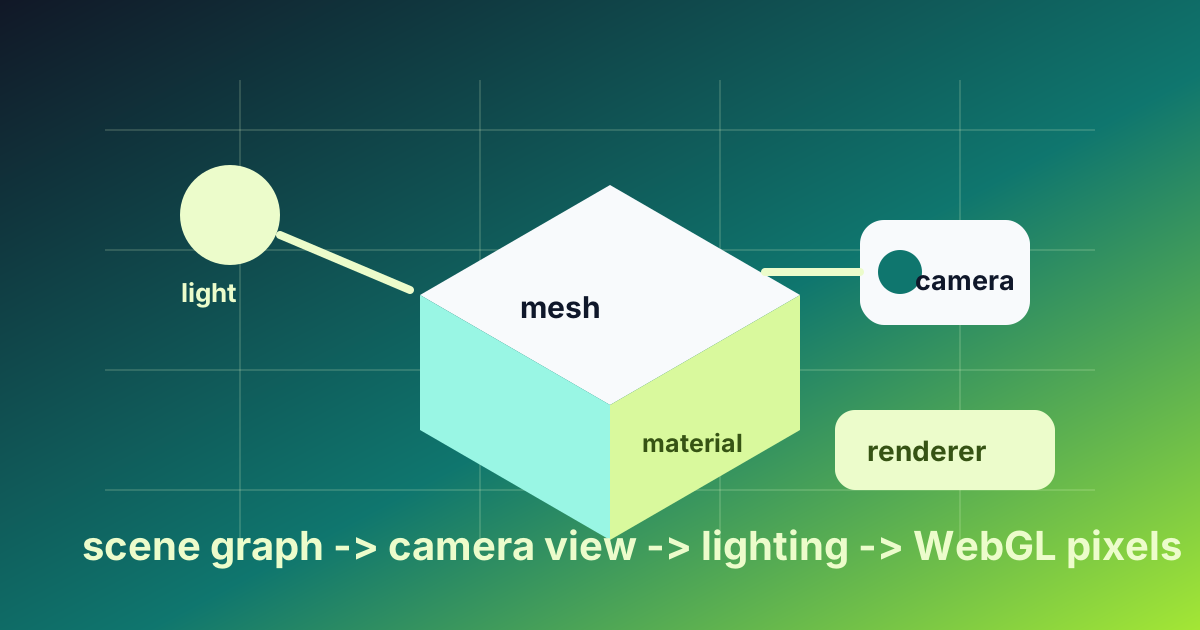
Why a Browser Can Render 3D At All
Twenty years ago, if you wanted 3D in a browser you needed a plugin. Java applets, Flash, Unity Web Player, Shockwave — each one came with installation friction, security warnings, and inconsistent behavior across browsers. None of them are how the modern web works. Today, every major browser ships with a built-in 3D rendering API called WebGL (and increasingly WebGPU) that exposes the same hardware acceleration that makes Fortnite possible. Your laptop's GPU is sitting idle while you read this. WebGL puts that GPU to work without a single download.
Three.js is the library that makes WebGL approachable. The raw WebGL API is a hostile experience — hundreds of lines of code to draw a single rotating cube, requiring you to manage shaders, buffers, matrices, and the entire graphics pipeline by hand. Three.js wraps the same hardware capabilities behind a friendly object-oriented API where drawing a cube is six lines.
This article is the mental model for Three.js. You will not learn enough to build the next Fortnite, but you will learn enough to read the code that builds a 3D scene and to modify it confidently. The math you fear is mostly hidden by the library; what remains is genuinely fun.
The Three Things Every Scene Has
Every Three.js scene — and every 3D rendering scene in general — has three things. Names different in different libraries; concepts identical:
- A scene. The collection of all the things that exist. Your cube, the floor, the lights, the model of the spaceship — all members of the scene.
- A camera. The point of view from which the scene is rendered. Where it is, what it is looking at, how wide an angle it sees.
- A renderer. The thing that takes the scene and the camera and produces an actual image on a 2D pixel grid (your screen).
The flow is "set up the three, then call renderer.render(scene, camera) repeatedly." That is the whole loop. Animations are achieved by changing properties of objects in the scene (or the camera) between frames and re-rendering.
This pattern is universal in 3D graphics. Unity, Unreal, Blender's render engine, Pixar's RenderMan, Three.js — all the same shape. Learn it once and the others become syntax variations on the same idea.
A Working Cube in 30 Lines
The smallest Three.js scene is a rotating cube. It exercises every concept worth knowing:
import * as THREE from 'three'

// 1. The scene — a container for everything.
const scene = new THREE.Scene()

// 2. The camera — perspective view, 75-degree field of view,
//    aspect ratio matching the window, near and far clipping planes.
const camera = new THREE.PerspectiveCamera(
  75,                                       // field of view in degrees
  window.innerWidth / window.innerHeight,   // aspect ratio
  0.1,                                      // near clipping plane
  1000                                      // far clipping plane
)
camera.position.z = 5                       // pull camera back from origin

// 3. The renderer — set its size, attach to the page.
const renderer = new THREE.WebGLRenderer({ antialias: true })
renderer.setSize(window.innerWidth, window.innerHeight)
document.body.appendChild(renderer.domElement)

// 4. A cube — geometry (the shape) + material (the surface).
const geometry = new THREE.BoxGeometry(1, 1, 1)
const material = new THREE.MeshStandardMaterial({ color: 0xff4444 })
const cube = new THREE.Mesh(geometry, material)
scene.add(cube)

// 5. Lighting — without it, MeshStandardMaterial renders as black.
scene.add(new THREE.AmbientLight(0xffffff, 0.4))
const point = new THREE.PointLight(0xffffff, 1)
point.position.set(5, 5, 5)
scene.add(point)

// 6. The render loop.
function animate() {
  requestAnimationFrame(animate)
  cube.rotation.x += 0.01
  cube.rotation.y += 0.01
  renderer.render(scene, camera)
}
animate()
Drop that into an HTML page, load Three.js as an ES module, and you have a rotating red cube filling the screen. The animation runs at the browser's refresh rate (usually 60fps, sometimes 120fps).
Read the code top to bottom and notice the structure: scene, camera, renderer, an object made of geometry + material, lights, a render loop. Every Three.js scene you ever look at has these same pieces in the same order.
Geometry — The Shape
BoxGeometry(1, 1, 1) creates a cube one unit wide, tall, and deep. Three.js ships with built-in geometries for the common shapes:
BoxGeometry— cube/rectangular prism.SphereGeometry— sphere.PlaneGeometry— flat rectangle (the floor of a scene, often).CylinderGeometry,ConeGeometry,TorusGeometry— cylinders, cones, donuts.BufferGeometry— the base class. You can construct arbitrary shapes by giving it lists of vertices.
For real scenes — characters, props, environments — you do not write the geometry by hand. You import it from a 3D modeling tool (Blender, Maya, ZBrush) using a format like glTF. Three.js's GLTFLoader reads these files. gltf is the de facto standard for 3D web content.
Material — The Surface
Geometry is the shape; material is what the surface looks like. The most common materials in Three.js, in order of complexity:
MeshBasicMaterial— solid color or texture, no lighting. Looks like a flat shape, useful for UI overlays and effects.MeshLambertMaterial— matte surface with cheap lighting calculations. Looks like cardboard.MeshPhongMaterial— shinier, with specular highlights. Looks like plastic.MeshStandardMaterial— physically based rendering (PBR), realistic light interaction, supports metalness and roughness. The 2026 default for "I want it to look real."
Materials accept colors, textures (images mapped onto the surface), normal maps (for fake bumpiness), and many other parameters. PBR materials in particular have a small dictionary's worth of options, but the defaults are sane enough that "color, roughness, metalness" is usually all you set.
Camera — The Point of View
Two camera types matter:
PerspectiveCamera— what you usually want. Things farther away look smaller, like reality.OrthographicCamera— no perspective distortion. Used for technical visualizations, isometric games, and 2D-on-3D effects.
PerspectiveCamera's field of view (FOV) parameter is the angle the camera "sees." 75 degrees is roughly cinematic. Higher FOVs (90+) feel like fisheye; lower FOVs (40 or less) feel zoomed-in.
The near and far clipping planes define the slab of space the camera renders. Anything closer than near or farther than far is invisible. Setting these too wide hurts depth precision (z-fighting); setting them too tight clips your scene. The defaults of 0.1 and 1000 work for most scenes; tighten them when you know the scale of your world.
Lighting — Why Things Look Like Anything
Without lighting, MeshStandardMaterial renders black. The available lights:
AmbientLight— uniform fill light from all directions. No shadows. Use sparingly to lift dark areas.PointLight— light source at a position, radiating in all directions. Like a lightbulb.DirectionalLight— parallel rays, like the sun. Direction matters; position does not (in terms of lighting calculations).SpotLight— point light with a cone of effect. Like a flashlight.HemisphereLight— gradient between two colors above and below. Cheap approximation of sky vs ground bounce.
Real scenes mix at least an AmbientLight (or HemisphereLight) for fill plus one or two directional or point lights for shape. Shadows are off by default (they are expensive). Turning them on requires setting castShadow on lights and castShadow / receiveShadow on meshes.
Animation — The Render Loop
Three.js does not animate by itself. You drive the animation with requestAnimationFrame, which the browser calls before each repaint. Inside the callback you mutate object properties and re-render:
function animate() {
  requestAnimationFrame(animate)
  cube.rotation.x += 0.01
  cube.rotation.y += 0.01
  renderer.render(scene, camera)
}
For more sophisticated animation, Three.js supports keyframe animations imported from glTF, the AnimationMixer class for blending between named animations, and tween libraries (TWEEN.js, GSAP) for one-off transitions. For most projects, requestAnimationFrame with simple property updates handles everything.
Performance Realities
Three.js performance is mostly about understanding what is expensive:
- Number of draw calls. Each unique mesh + material is a draw call. A scene with 1000 separate cubes is much slower than 1000 cubes merged into one geometry. Use
InstancedMeshfor repeated objects. - Vertex count. A model with 100,000 polygons is heavier than one with 10,000. Lower-resolution models (LODs) for objects far from the camera.
- Texture size. A 4096x4096 texture is 16x heavier in memory than 1024x1024. Use the smallest texture that looks acceptable.
- Shadow maps. Real-time shadows require an extra render pass per light. Limit shadow-casting lights.
- Post-processing. Bloom, depth-of-field, motion blur — all gorgeous, all expensive. Add them last.
A static scene with one or two animated objects runs at 60fps on any modern device. A complex scene with PBR, shadows, and post-processing requires actual budget management. Three.js's Stats panel and the browser's WebGL profiler tell you exactly where time is going.
Three.js vs the Alternatives
A practical comparison of 3D-on-the-web options:
| Library | Strength | Weakness |
|---|---|---|
| Three.js | Mature, huge ecosystem, glTF support | Imperative API, manual scene management |
| Babylon.js | Microsoft-backed, more game-engine-like | Larger bundle, less flexible for low-level work |
| A-Frame | HTML-based, easy for non-programmers | Built on Three.js, opinionated structure |
| PlayCanvas | Hosted editor, multi-user collaboration | Vendor-hosted, less code-first |
| react-three-fiber | React bindings for Three.js | Adds a layer; React patterns over Three concepts |
For a programmer learning 3D, Three.js is the right starting point. The concepts you learn transfer to any other library. For a React-heavy project, react-three-fiber lets you write Three.js scenes as React components, which is genuinely nicer for complex scenes.
Where This Fits
Lesson 03 of the ABCsteps curriculum builds a small Three.js scene as part of learning 3D fundamentals. With this article in your head, the lesson's code reads as a known structure — scene, camera, renderer, mesh, light, render loop — instead of incantations. The lesson's keystrokes turn into a working scene; the article shows you why the keystrokes mean what they mean.
Apply this hands-on · Module A
Build Your First 3D Scene
Lesson 03 builds a small 3D scene with Three.js. This article gives you the mental model — scene, camera, mesh, light — that makes the lesson feel obvious instead of mystical.


Skill vocabulary from the lesson
Tool logos are curriculum references only: no affiliation, hiring promise, salary promise, or placement guarantee.
Company skill surface
Interactive product teams care about the scene model because visual software still needs engineering discipline.






Team contexts
Web graphics, Game-tech prototypes, Interactive product UI
Proof prompt
Show the scene, camera, light, and interaction change separately so another engineer can inspect the rendering path.
Company and platform logos are ecosystem references only: no affiliation, endorsement, interview access, hiring preference, salary outcome, or placement guarantee.
Open lesson
Divyanshu Singh Chouhan
Founder, ABCsteps Technologies
Founder of ABCsteps Technologies. Building a 20-lesson AI engineering course that teaches AI, ML, cloud, and full-stack development through written lessons and real projects.


After this article
Choose the next proof-bearing step.
Do not collect another article by default. Move into a public lesson, continue a focused path, or bring a concrete repo question to a paid-plan conversation.
Use paid guidance only when it changes the artifact: a repo, demo, written note, architecture decision, or review trail another person can inspect.
BuildContinue public lessons
Open the 20-lesson path and turn the concept into a runnable artifact.
 Read
ReadFollow a focused path
Use a short article sequence only when one lesson needs more context.
DecideCompare plans
Use a paid plan only if feedback, accountability, or review would change the work.
 Ask
AskAsk with context
Send the lesson, repo, error, or decision you want reviewed before scheduling a call or review.
Related Articles
On this page
Article context
Product interface surface
Read this article as web vocabulary: browser behavior, interface structure, client-server boundaries, and user-facing state.


Tool and platform logos are article-context references only: no affiliation, endorsement, interview access, hiring promise, salary promise, or placement guarantee.
Share